Quick Start: Sample Workflow
Initialize a Database
Normally, to use Hercules, you connect to an existing database.
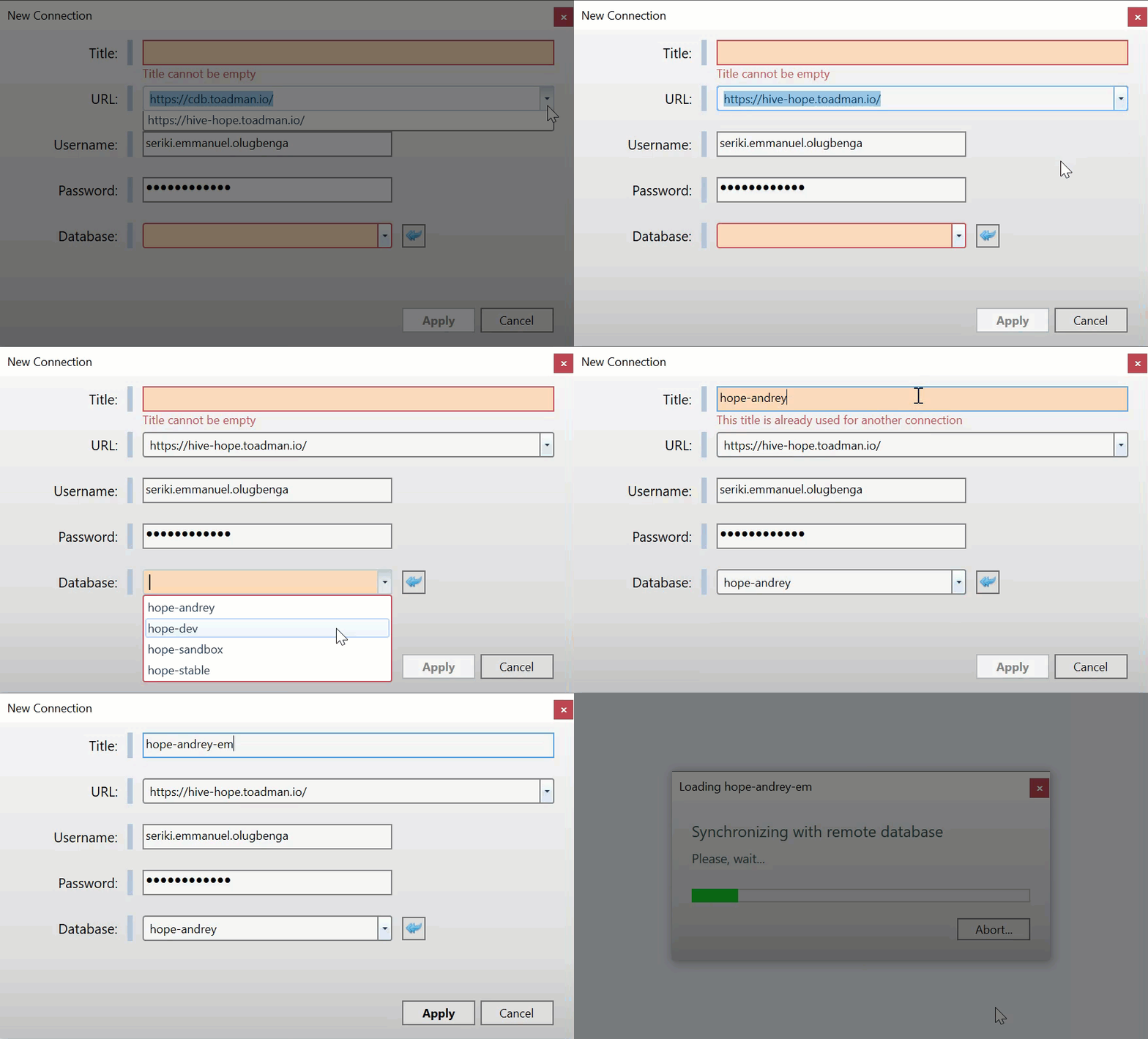
When you open Hercules for the first time, Hercules brings up the New Connection window. You can connect to a database from there.
Otherwise, to connect to a database, go through Connection > New Connection.
In the URL field, specify the address of the server where your databases are stored.
In the Database field, select the database to which Hercules connects. Fill in your Username and Password.
See also
Examine the Database and Find a document
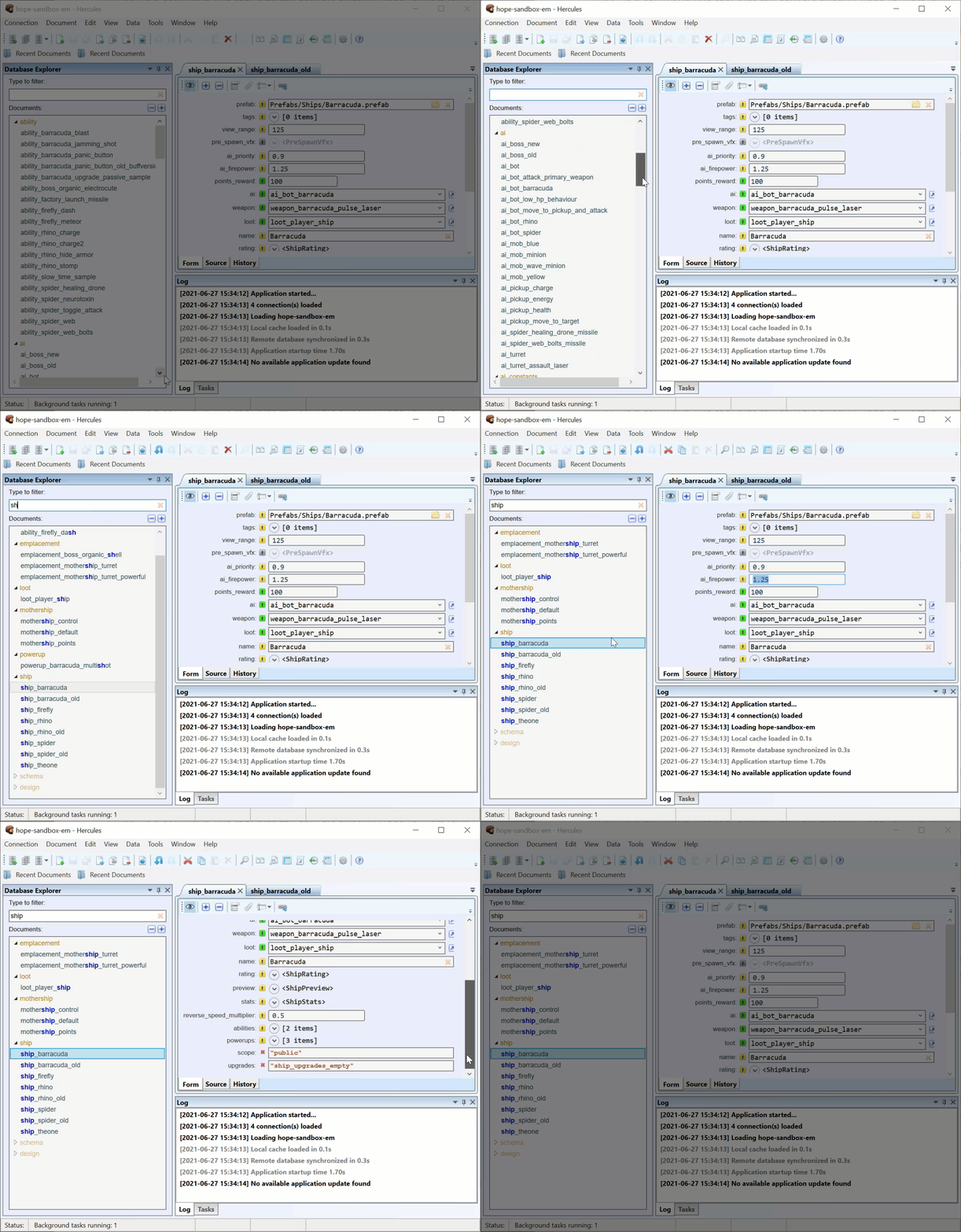
Assuming you are now connected to a database, you can go through its contents to find the document you need.
Clone a Document
Cloning allows you to quickly create a new document based on an existing document. You can then edit the new document.
Tip
If you do not want to clone a document and prefer to edit a document directly, skip this section, move to the next one.
This is how you clone a document:
Click the document and then press F5.
Type in a new name for the cloned document.

See also
Edit Fields in a Document
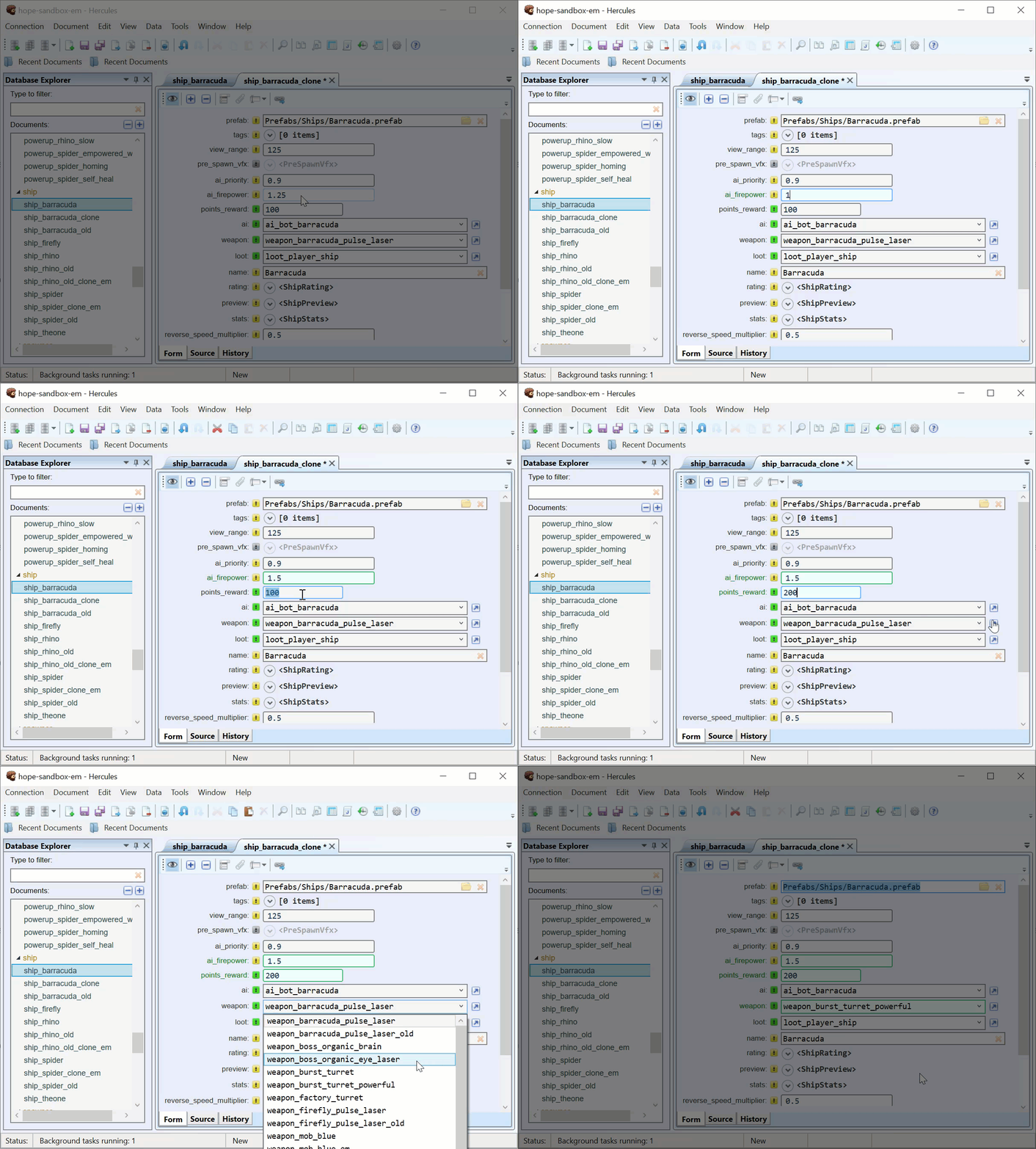
You can make changes to variables (numbers, files, properties, paths) for different fields.
Color Legend
In Hercules, fields are marked as either Required or Optional.
Required fields are fields with the yellow exclamation icon. In a required field, you always have to specify a value or insert an object. You cannot disable a required field.
Optional fields are fields with the green exclamation icon (when enabled) or the gray exclamation icon (when disabled). You can disable an optional field (for example, if you do not want to specify a value for it).
To enable or disable an optional field, click its exclamation icon.

Warning
All values you enter are checked against the document schema. When you type in an invalid value, Hercules highlights the text field with a red theme.
Save Changes to the Document or Database
After you finish editing a document or database, you may decide to save your work.
To save changes made to a single document, use the Ctrl + S shortcut or go through Document > Save Document.
To save all the changes made in a database (changes to multiple documents), use the Ctrl + Shift + S shortcut or go through Document > Save All.