Connections
Databases and Connections
To use Hercules normally, you have to connect to a database. Hercules then loads the database and displays its contents.
At any given point in time, a single Hercules instance can connect to only one database.
Important
When Hercules is already connected to a database and you try to connect to another database directly, Hercules terminates the active connection and initiates the new connection.
But you can run several instances of Hercules to initiate connections to different databases simultaneously.
Setting Up a New Connection
You can set up a new connection through any of these methods:
Go through Connection > New Connection.
Go through Connection > Manage Connections. On the Manage Connections window, click New.
Click the New Connection icon on the menu bar.
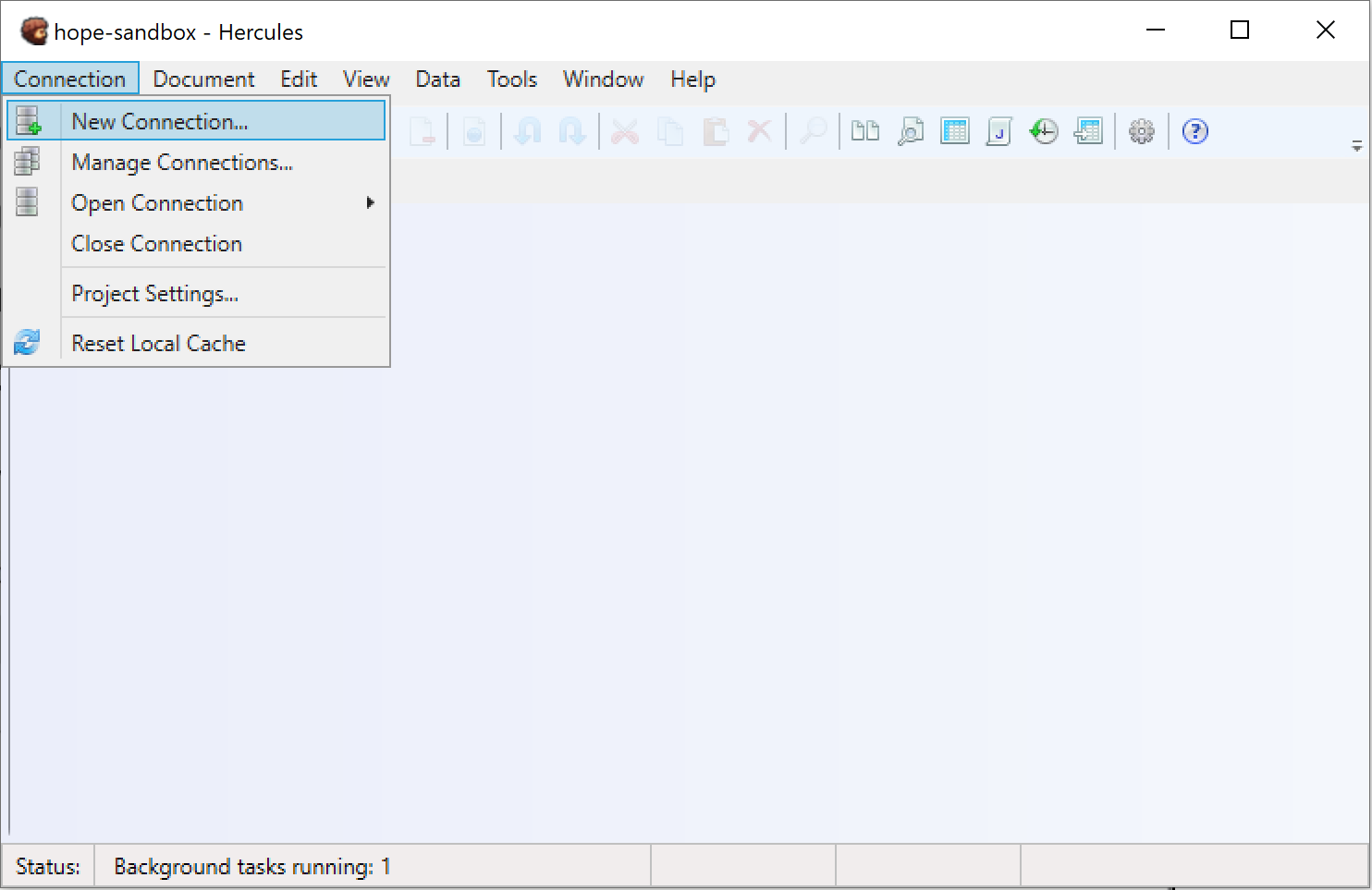
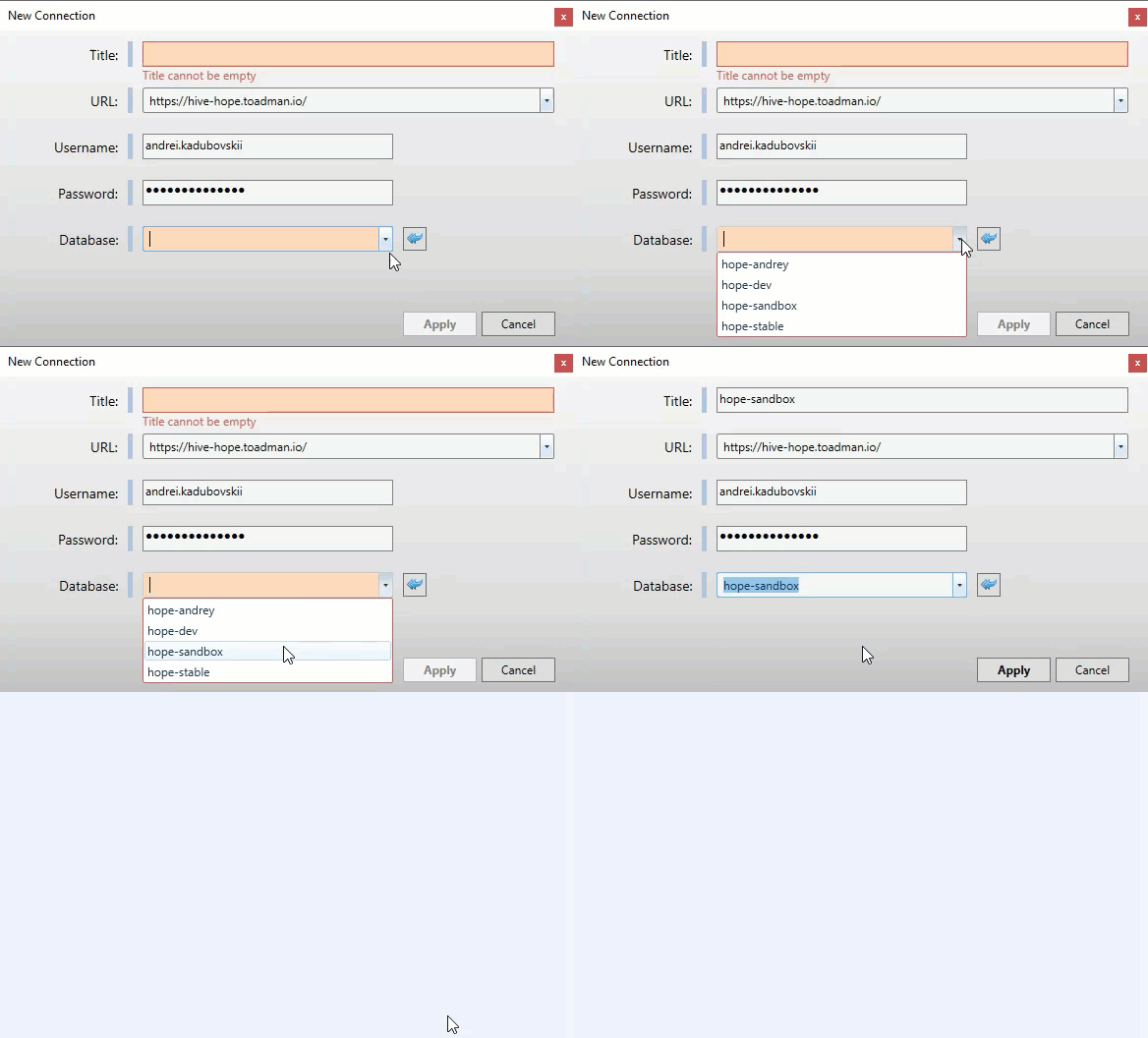
On the New Connection window:
Title: Type in a name for the connection. Give the connection a name that helps you to identify it quickly.
Warning
Every connection should have a unique name.
URL: Type in the URL or path where your CouchDB currently resides.
Username: Type in your username.
Password: Type in your password.
Database: Click the drop-down menu to see the available databases. Select the database to which you want to connect.
Click Apply to finish.
Switching Between Existing Connections
In Hercules, you can establish only one connection to a database at a time. To work with a different database, you have to close the active connection and establish a new one.
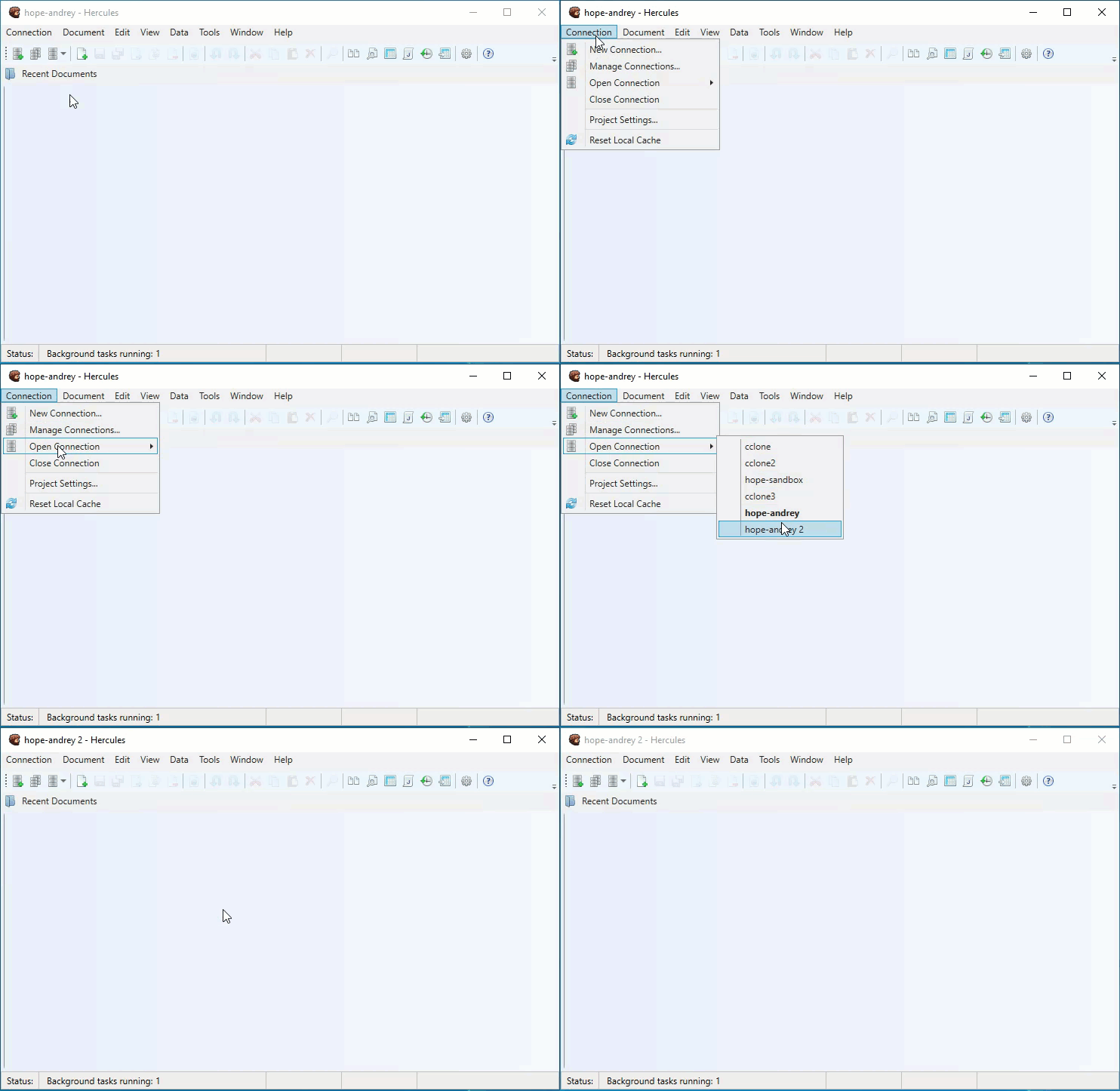
From the Connection menu, you can quickly switch from one connection to another (assuming you previously connected to the databases).
Go through Connection > Open Connection. Select the connection to which you want to switch.
Note
The active connection name is always displayed on Hercules’ title bar.
Managing Connections
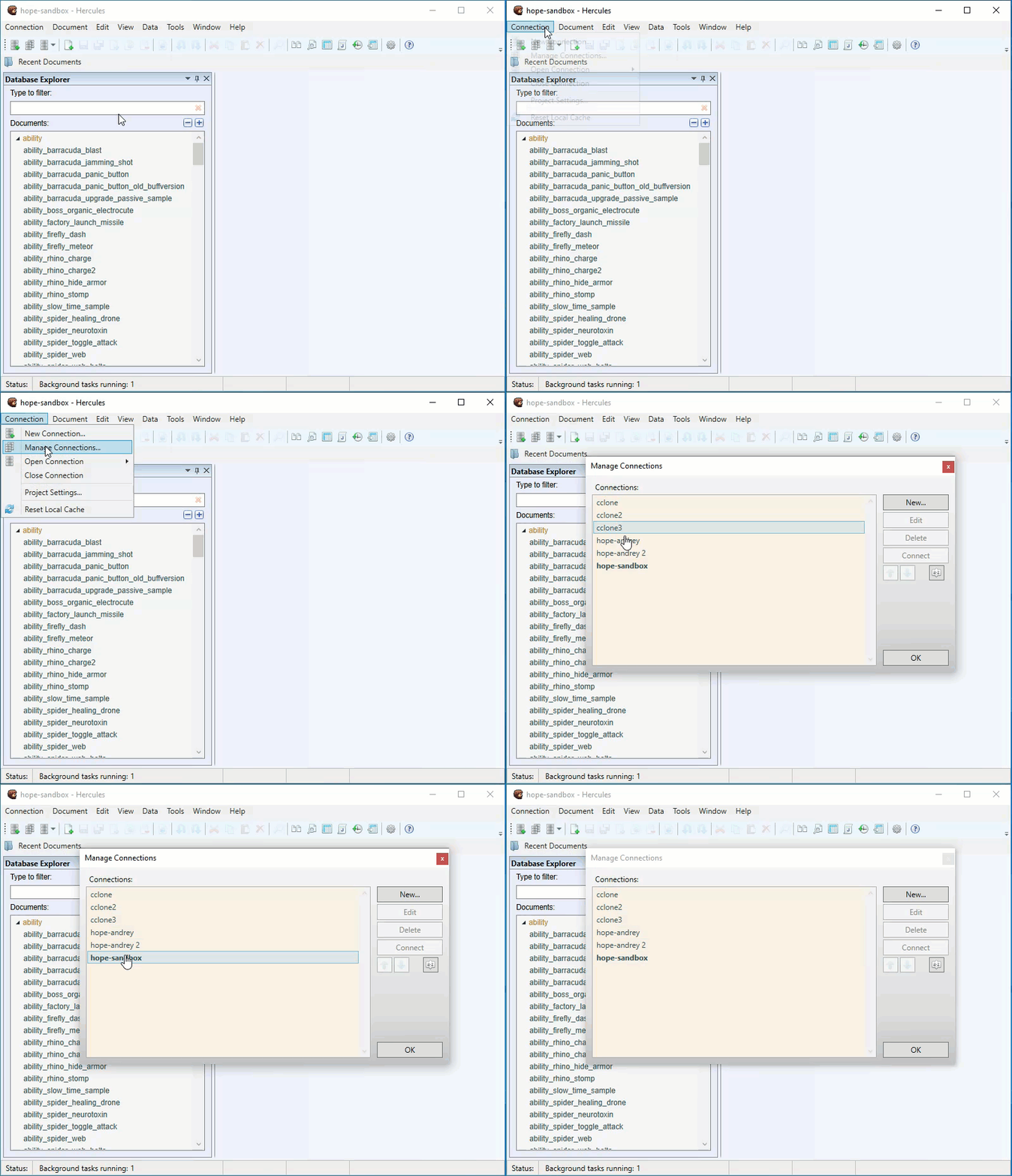
Go through Connection > Manage Connections.
On the Database Connections window, you get to manage existing connections.
The active connection appears in bold.
Editing Connections
This is how you make changes to the setup for an existing connection:
Go through Connection > Manage Connections.
Select the connection you want to edit. Click the Edit button.
Make the necessary changes.
Click Apply.
Deleting Connections
Since a connection is just a link to a database, deleting one does not affect the database or its data in any way.
This is how you delete a connection:
Go through Connection > Manage Connections.
Select the connection you want to delete.
Click the Delete button.
Click Yes to confirm the operation.
Sorting Connections
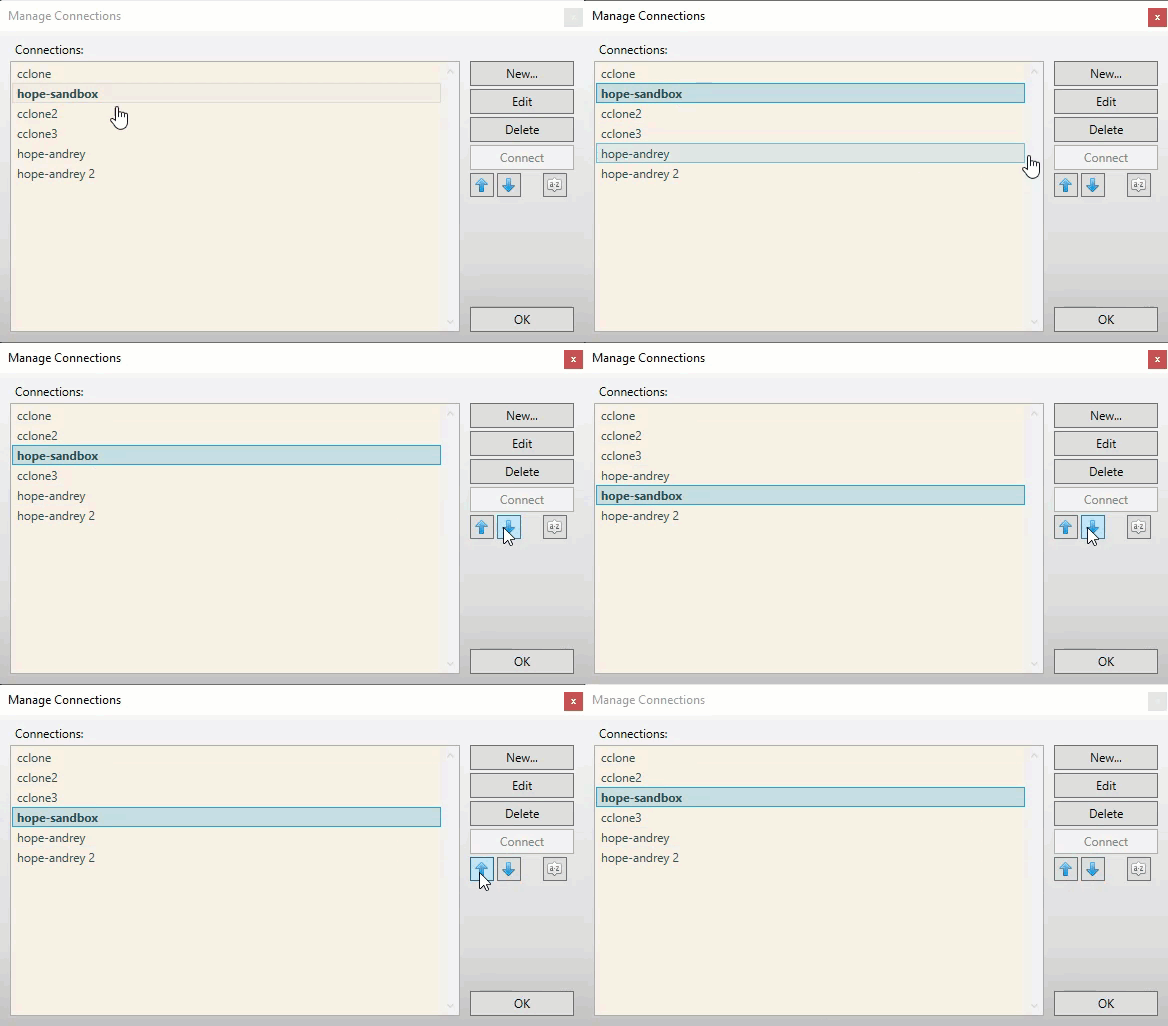
Go through Connection > Edit Connections.
Select a connection and then click an arrow button to move it up or down.
Closing Connections
To close an active connection, go through Connections > Close Connections.