Document Version Control
Analyzing Database History
In Hercules, you can easily find out who edited a database and the changes they made.
To access the database history, do any of these:
Go through Data > Database History.
Click the Database History button on the toolbar.
By default, Hercules displays the history for the current day only.
To view the history for a certain period, use the date picker to specify the start date in the Since field and then click Refresh.
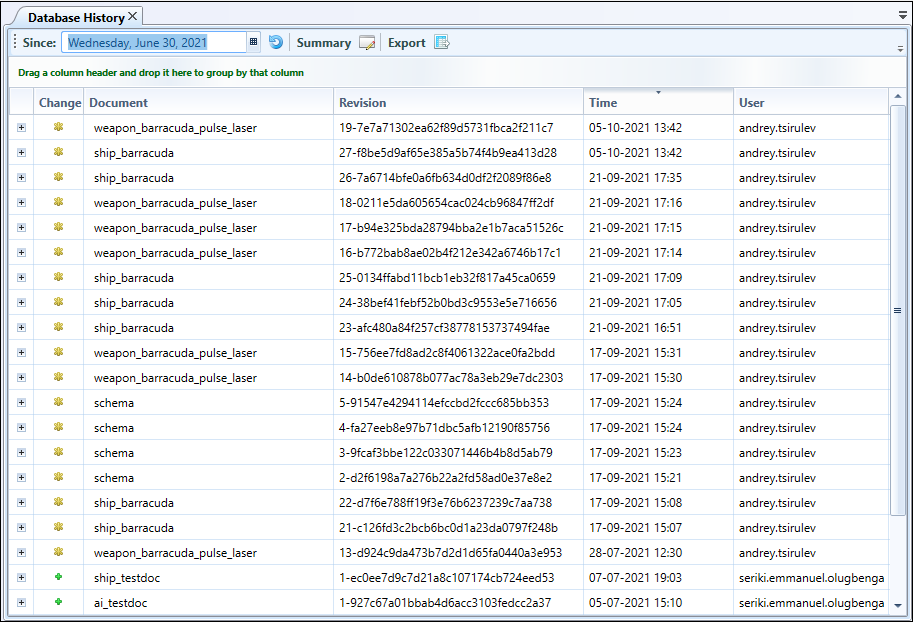
The database history displays the following:
changed document’s name
revision number and its hash value
date and time the change was made
user who introduced the change.
Using the Export button at the top of the tab, you can export a database history to a spreadsheet file.
Working with Document History and Versions
Hercules tracks changes made to a document, so you can always find out:
when a document was changed
who made the changes
what exactly was changed.
To access a document’s history, open the document and then click the History tab.
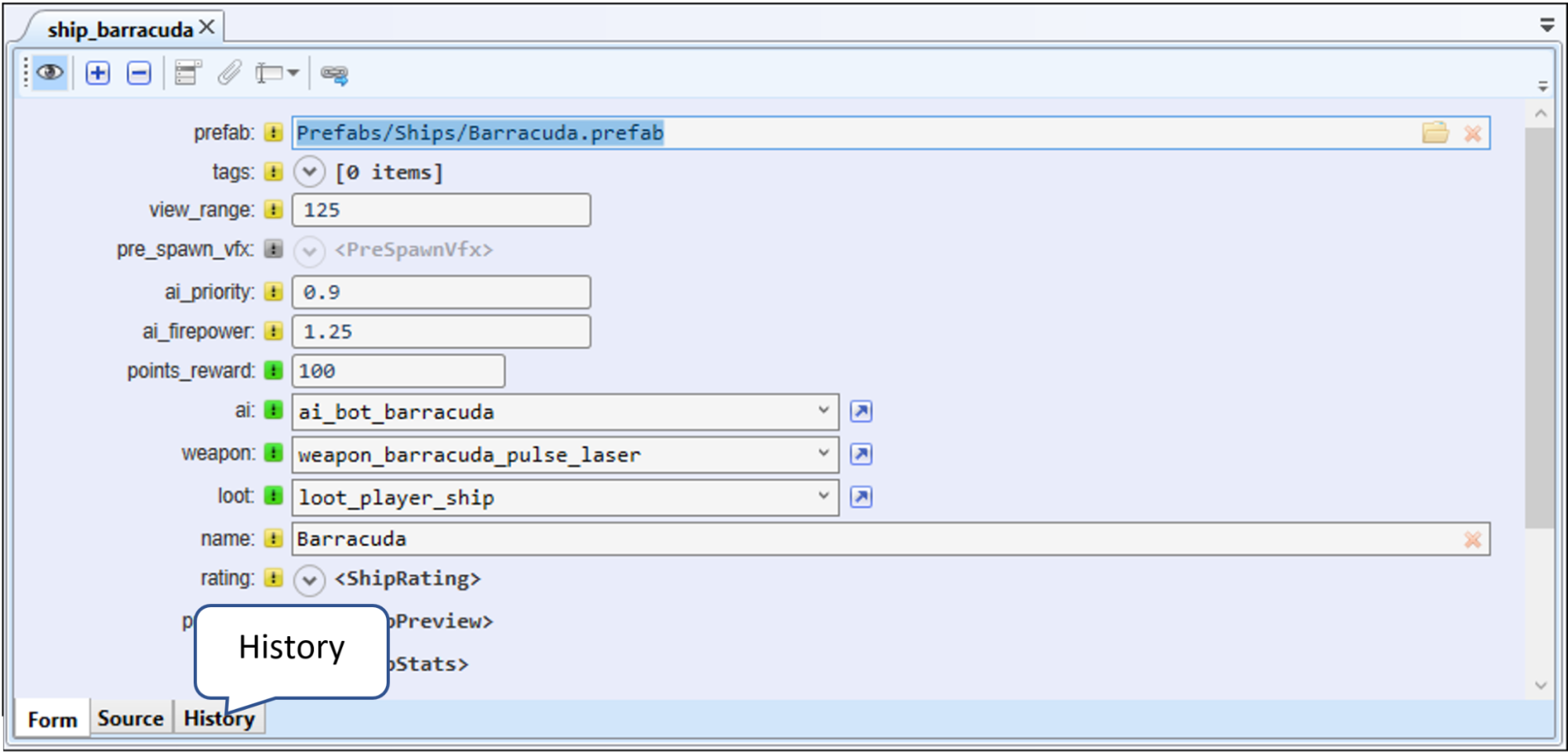
Hercules provides a list of records with information on all versions (revisions) of the document.
The records are organized in reverse chronological order: a record containing information on the latest version is displayed at the top of the list.
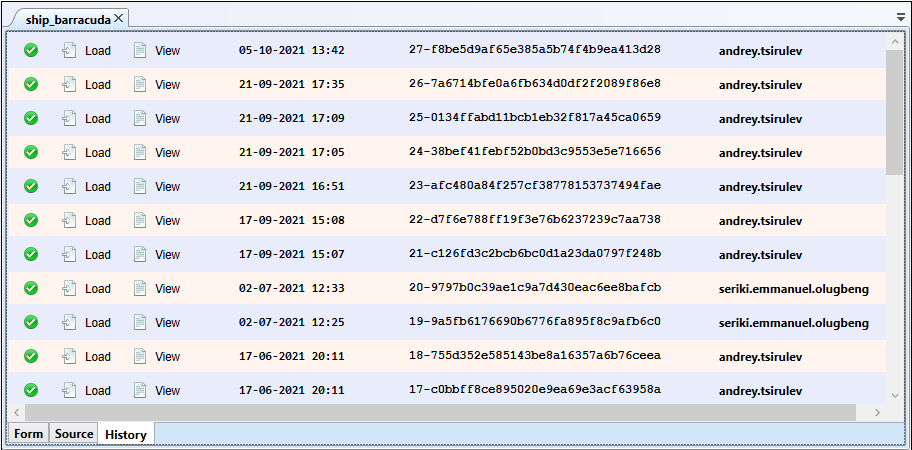
Document history also provides information on creation dates, version numbers, and other users that made changes to the document.
To view the differences between the current and previous versions of a record, hover your cursor over the change entry.
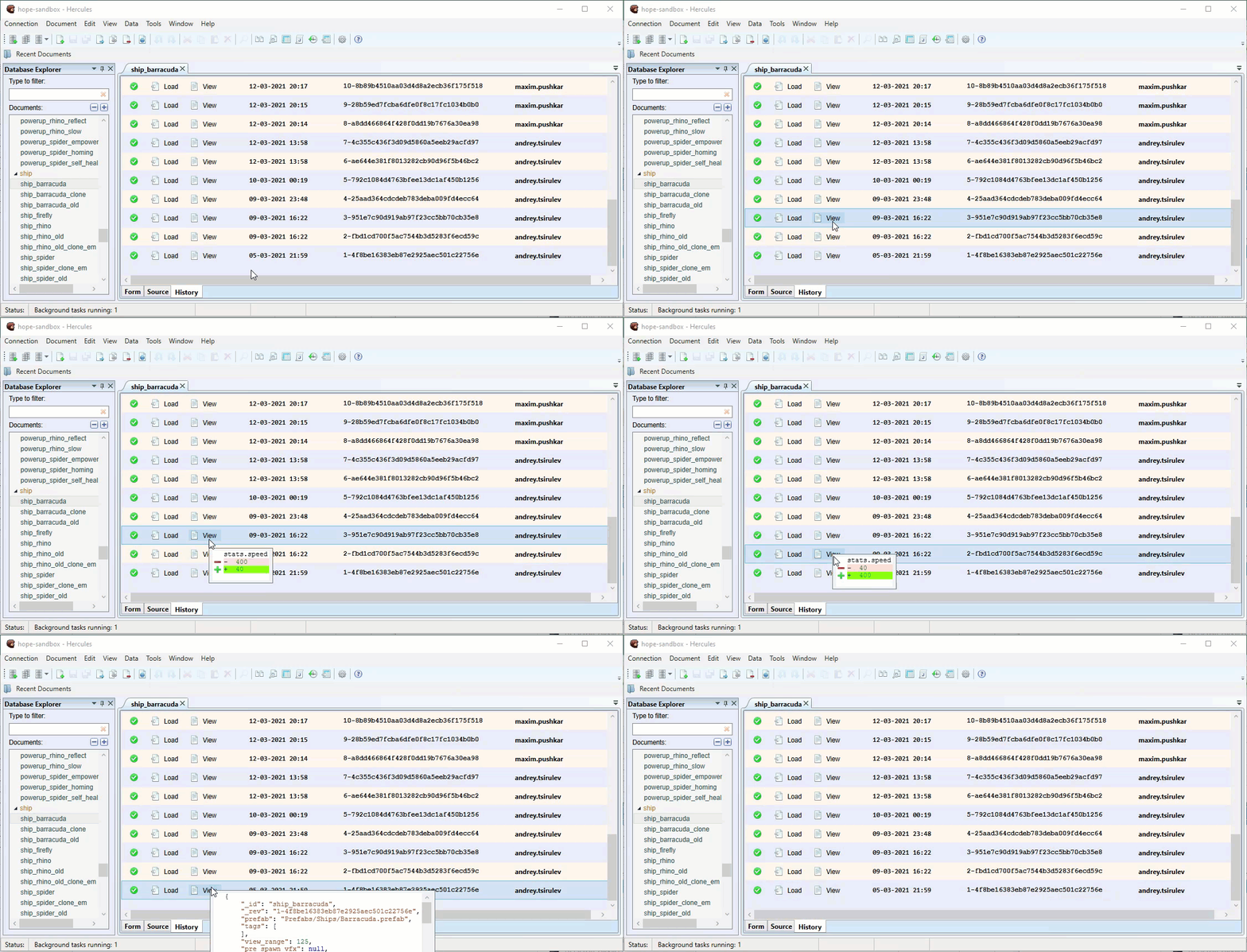
The History tab only shows how the selected version differs from the previous version. It does not display changes made to the current version of the document.
Loading a version
From the Load column, you can load a specific document version. To load data from a record into the form tab, click the Load button.
Note
You can configure the database to delete old document versions automatically. The green tick indicates that the document version is present and available for download.
Loading the data for a document does not cause the document to change. When you load a document, the changes for the data are simply filled in—the document changes only after you (deliberately) save the changes. Therefore, you can safely load, review, and modify data.
To revert the document to the loaded version, click Save.
To view the full details for changes involving a specific document version in a separate tab, click the View button.

Hint
You can open multiple document versions simultaneously in separate tabs.
Recovering Deleted Documents
Hercules allows you to recover deleted documents. When you delete documents, they are sent to the Trash Bin on the database server where they are retained for a specific period of time defined in the CouchDB configuration file. During this period, you can recover any deleted document. After the retention period expires, recovery becomes impossible.
To recover a deleted document, do this:
Go through Data > Trash Bin.
All documents deleted from the database are displayed on the Trash Bin tab.
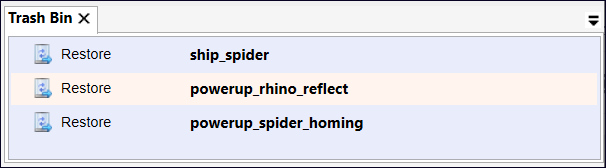
Under Trash Bin, select the document you want to recover. To select multiple documents, use Ctrl and Shift.
Click Recover.